
Gridiron plugin tutorial
How to use the Gridiron plugin
Gridiron Stats turns WordPress into a full American-football site — teams, players, fixtures, standings, brackets and a weekly pick’em. This step-by-step guide, with screenshots and screen recordings, shows how to build with it in the block editor with Stepfox Looks, and in Elementor.
What the plugin gives you
One plugin powers both editors. It registers the sports content types, keeps the standings and results in sync, and exposes everything as native blocks and native Elementor widgets — so you build pages the same way you build any other page.
100+
Editor blocks — hero sections, scoreboards, standings, rosters, brackets and dozens of small composable field blocks.
32
Elementor widgets plus 3 dynamic tags, rendered by the same engine — identical output in either editor.
4
Content types — Teams, Players, Games and Competitions, organised by conference, division and position.
Live
Score tickers, kickoff countdowns, playoff races and a logged-in pick’em game with its own leaderboard.
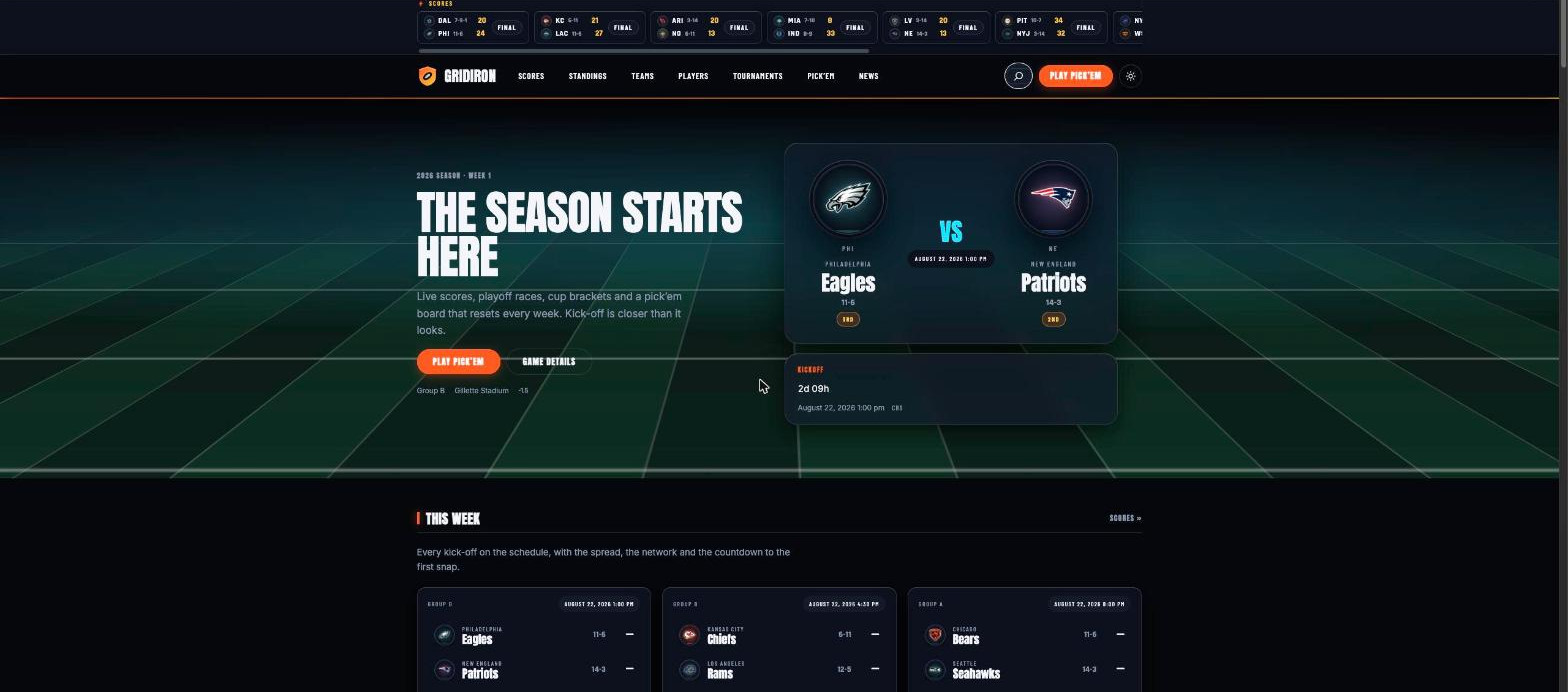
The Gridiron demo front page — every element on it is a block from the plugin.
Before you build
Add your league data first
When the plugin is active you get four new menus in wp-admin: Teams, Players, Games and Competitions. Every block and widget reads from these — enter a result once and the standings, win bars, streaks, playoff seeds and head-to-head records update everywhere on the site. Teams belong to Conferences and Divisions, players have Positions, and each game stores kickoff time, venue, TV network, the point spread and quarter-by-quarter scores.
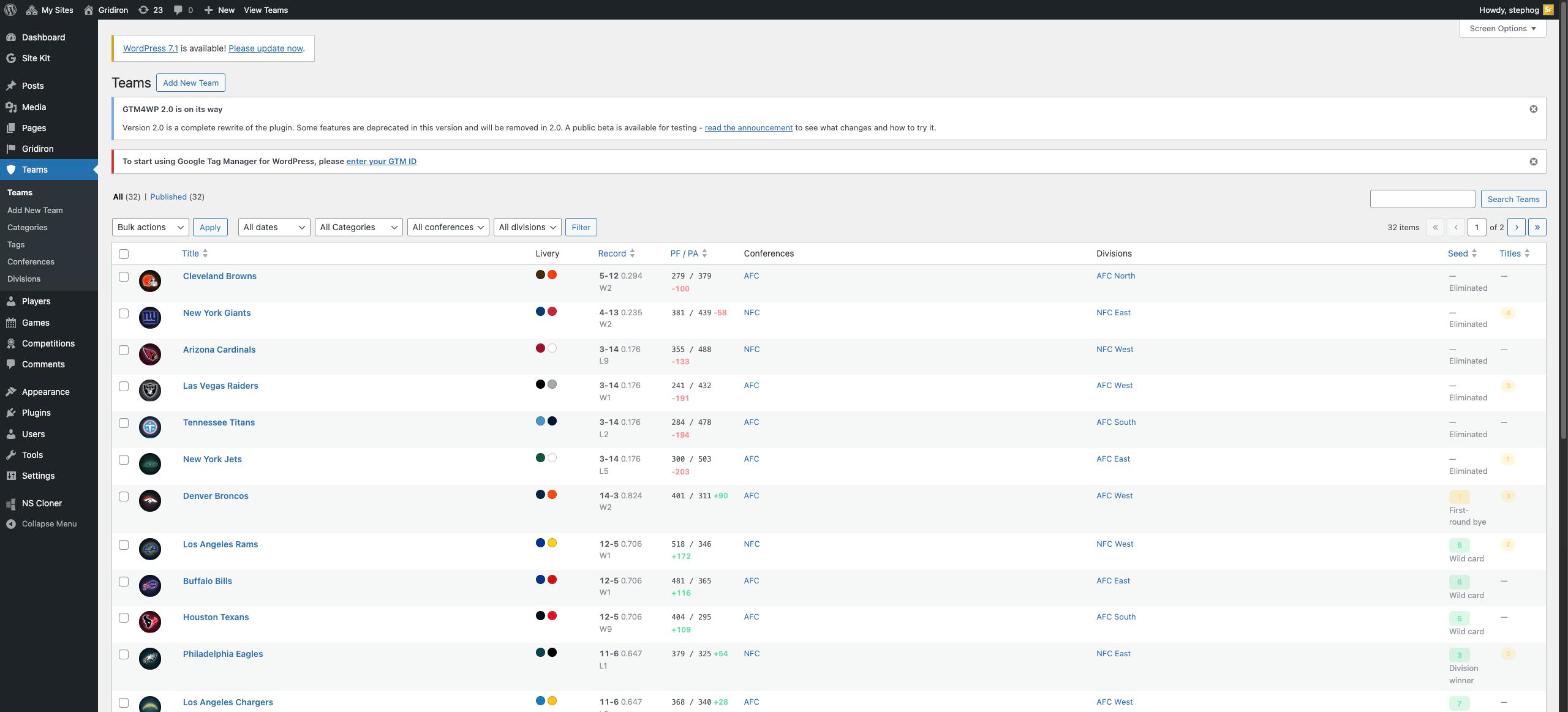
The Teams screen — records, points, conferences, divisions and playoff seeds at a glance.
Guide 1
Block editor, with Stepfox Looks
The Gridiron block theme ships with zero CSS of its own — every visual decision is an editable attribute on a block. That is what the Stepfox Looks plugin does: it adds a responsive styling panel to every block in the editor, so you restyle the plugin’s sports blocks the same way you restyle a paragraph.
Step 1
Install and activate
- Install the Gridiron theme from Appearance → Themes.
- Activate the Stepfox Looks plugin — it powers the responsive styling panel and the theme’s design attributes.
- Activate the Gridiron Stats plugin — it registers the content types and all the sports blocks.
- Add teams, games and a competition (or import the demo content) so the blocks have something to show.
Step 2
Find the Gridiron blocks in the inserter
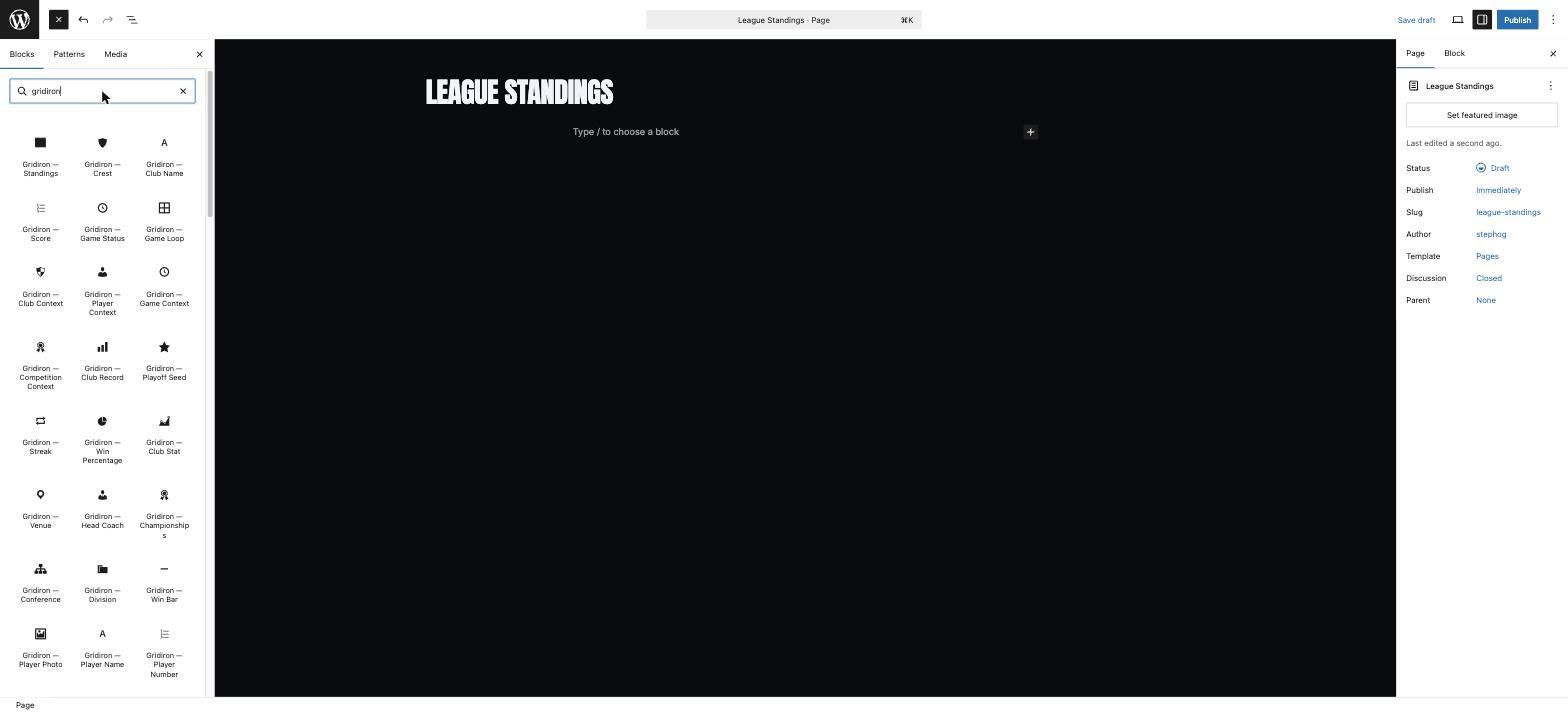
Edit any page, open the inserter with the + button and type “gridiron”. Everything the plugin registers shows up — big ready-made sections such as Standings, Scoreboard, Game Hero and Bracket, next to small field blocks such as Crest, Club Name, Score and Playoff Seed that you can compose into your own cards.
Step 3
Insert a block and pick its data
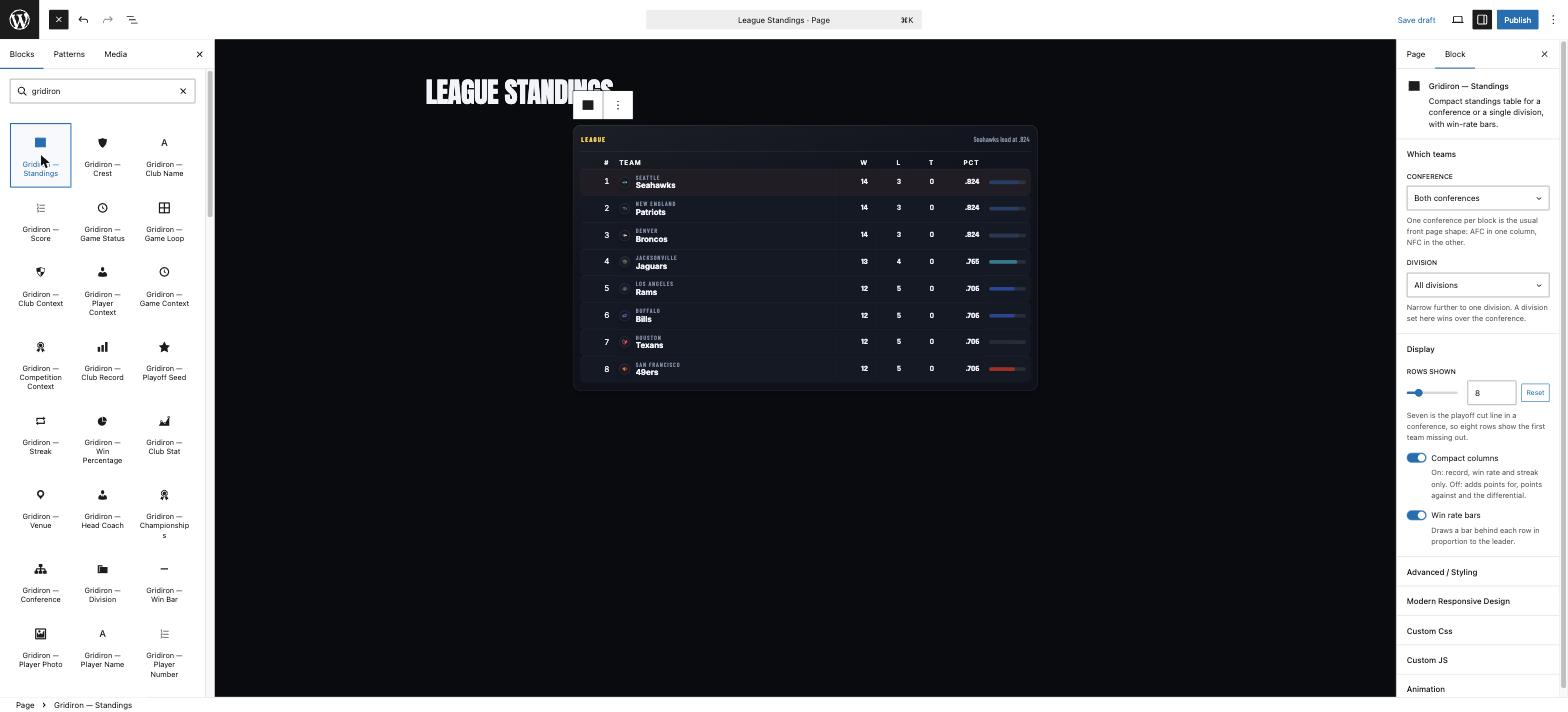
Click a block to insert it and it renders live in the canvas with your real data — no placeholders. The sidebar holds its content settings: here the Standings block lets you choose the conference and division, how many rows to show, compact or full columns, and whether to draw win-rate bars behind each row.
Step 4
Open Modern Responsive Design
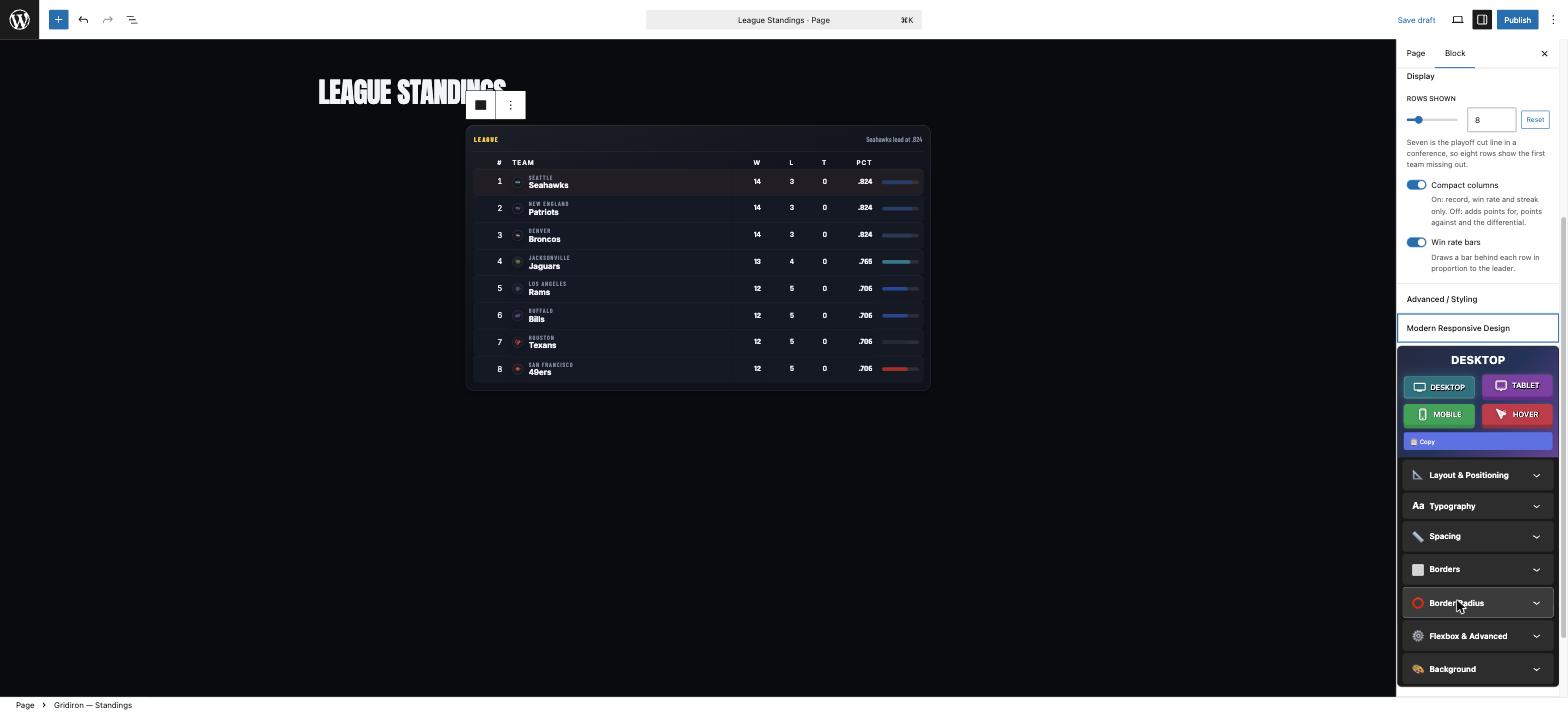
Below the block’s own settings sits the Stepfox Looks panel: Modern Responsive Design. Pick a device tab — Desktop, Tablet, Mobile or Hover — then open any section: Layout & Positioning, Typography, Spacing, Borders, Border Radius, Flexbox & Advanced, Background. Values cascade down from desktop, and each device can override them, so a block can be four columns on desktop and a single stacked column on phones.
Step 5
Change a value — the canvas updates live
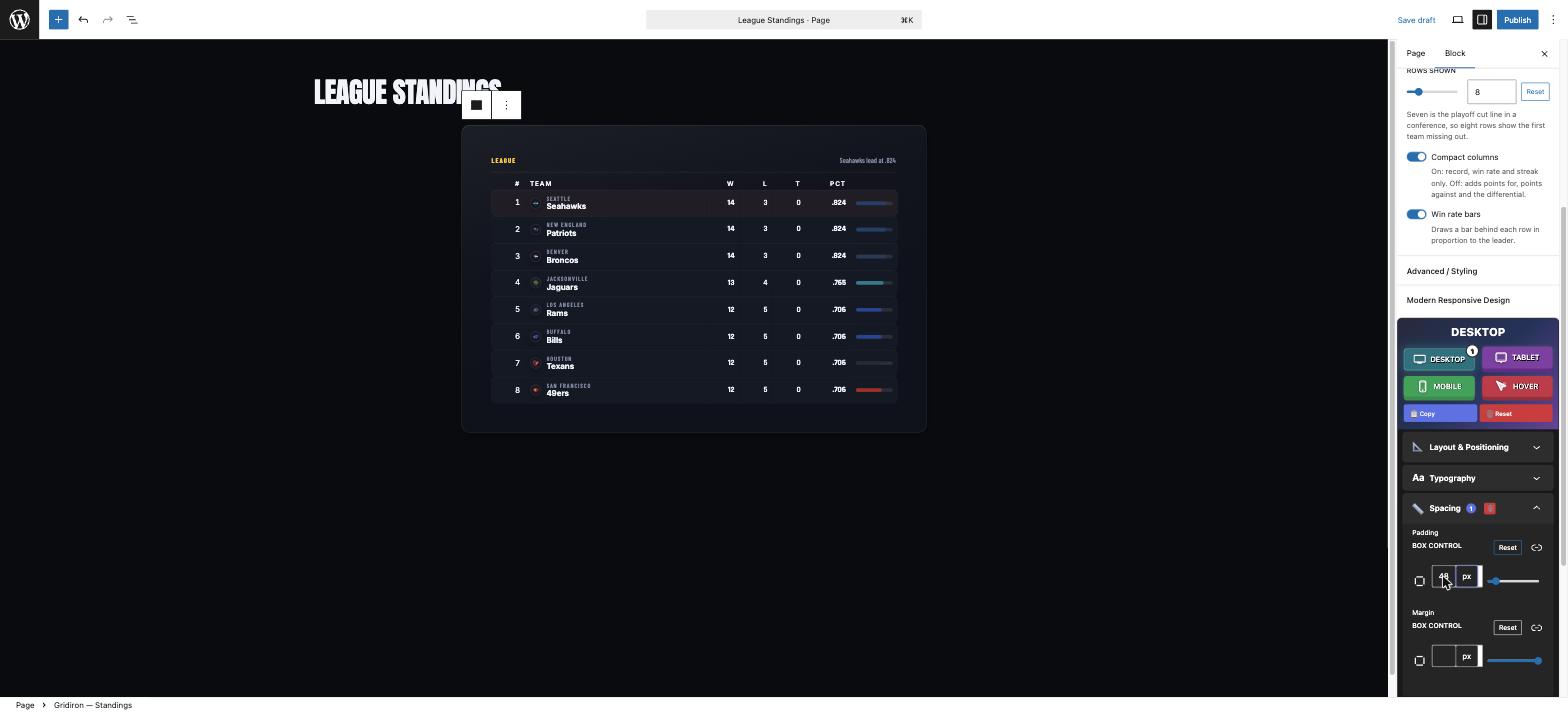
Here the Spacing section gets 48px of padding on the desktop tab: the table in the canvas re-renders instantly, and the device tab shows a badge counting the styles you have set on it. Nothing is written into a stylesheet — the values live on the block itself, so duplicating a block carries its whole design with it.
Video
Watch the whole flow, start to finish
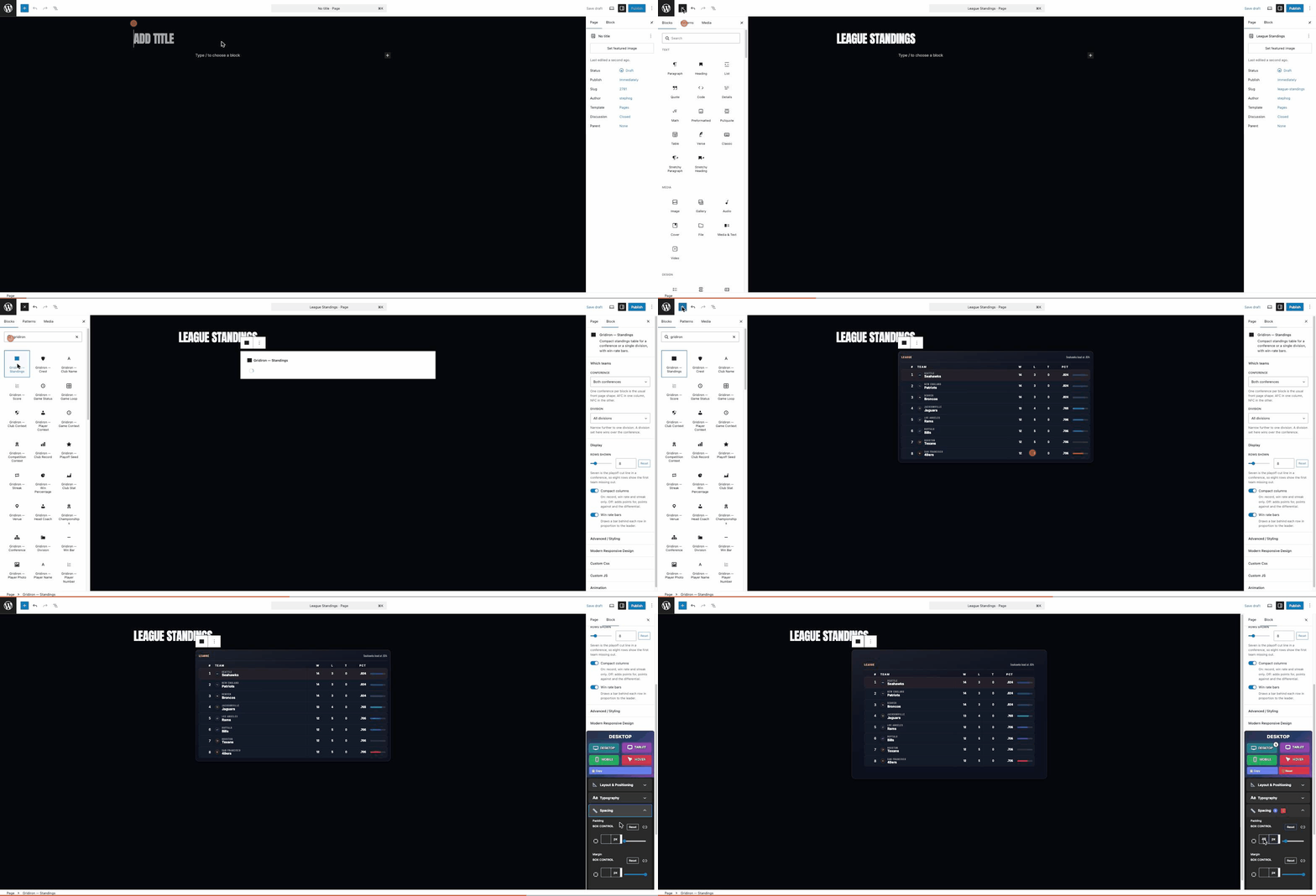
The recording below runs through everything above in about thirty seconds: naming the page, searching the inserter, inserting the Standings block, opening Modern Responsive Design and adding the padding — with the canvas updating at every step.
Guide 2
Elementor
Prefer Elementor? The same plugin ships an Elementor module with 32 widgets and 3 dynamic tags, and the Gridiron Elementor theme is built entirely with them. The widgets call the exact same renderers as the blocks, so what you see on the block-theme demo is what the widgets output — pixel for pixel.
Step 1
Set up, then search the panel
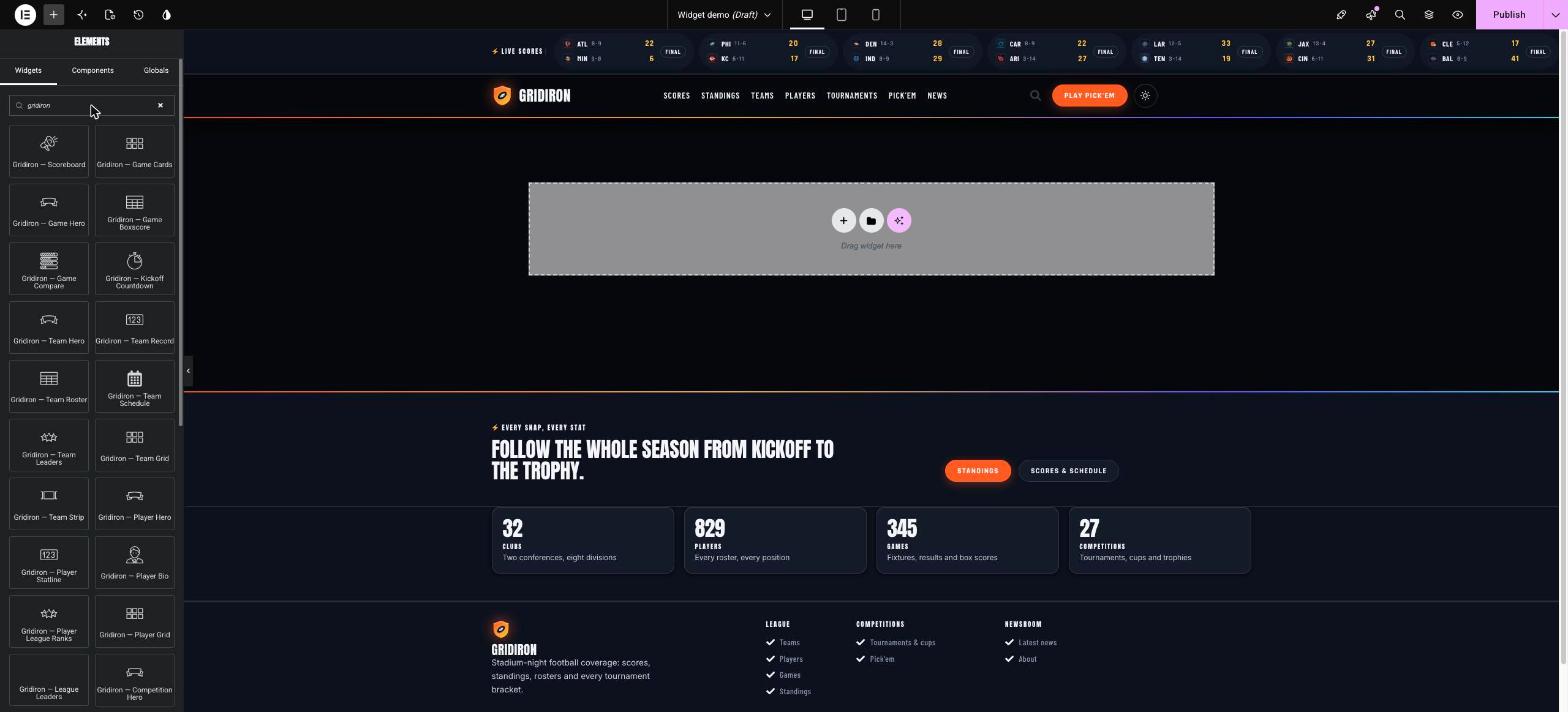
Activate Elementor, the Gridiron Elementor theme and the Gridiron Stats plugin — the Elementor module loads automatically, no extra setup. Open any page with Elementor and type “gridiron” into the widget search: the whole family appears, from Scoreboard and Game Cards to Team Rosters, Player Grids, Brackets and the Kickoff Countdown.
Step 2
Add a widget and set its content
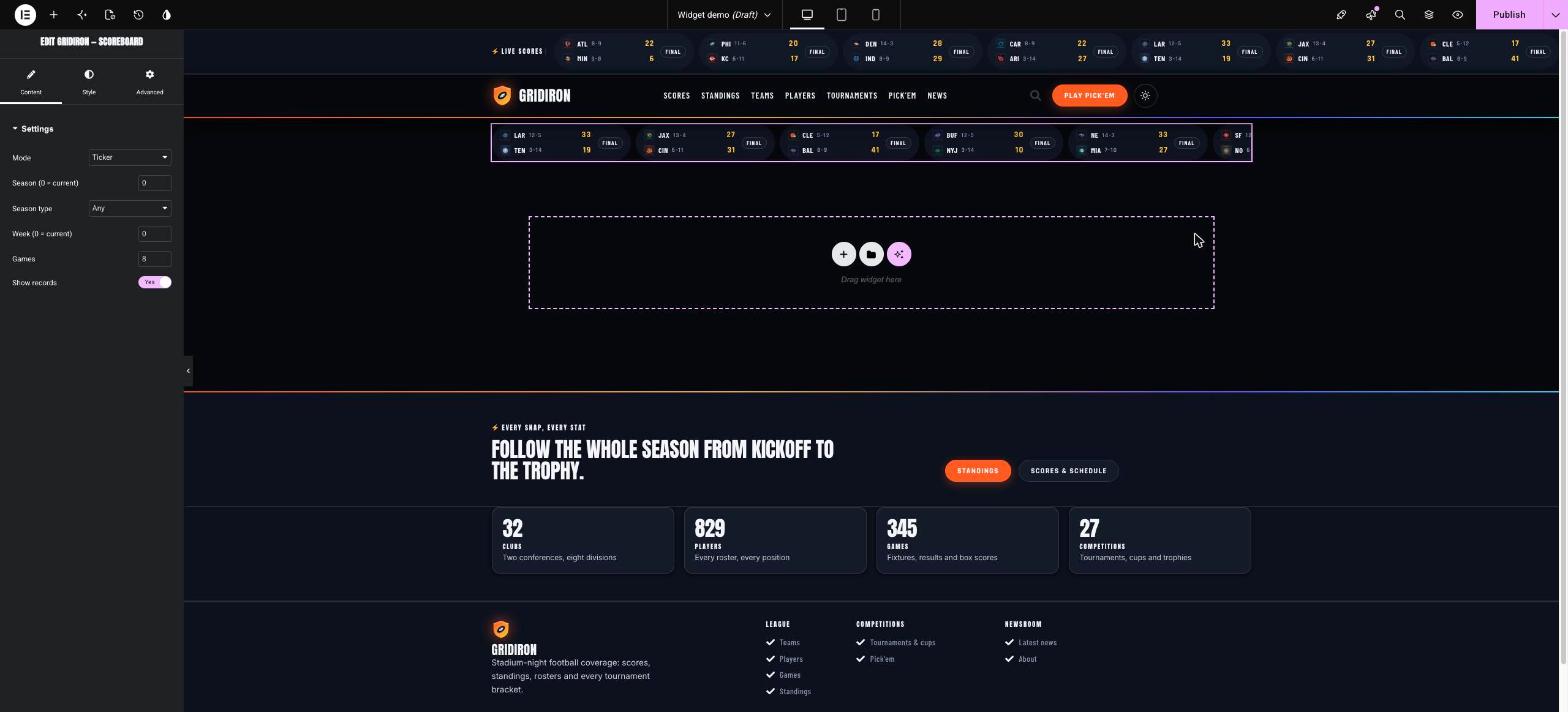
Drop a widget into a container (or just click it with a container selected) and it renders with live data straight away. The Content tab holds the sports settings — the Scoreboard widget, for example, switches between ticker and grid modes and lets you pick the season, season type, week and number of games. Widgets that show a single team, player or game default to the current one on that entity’s own page, or let you pick one manually anywhere else — that is how one Theme Builder template can serve all 32 team pages.
Step 3
Restyle it from the Style tab
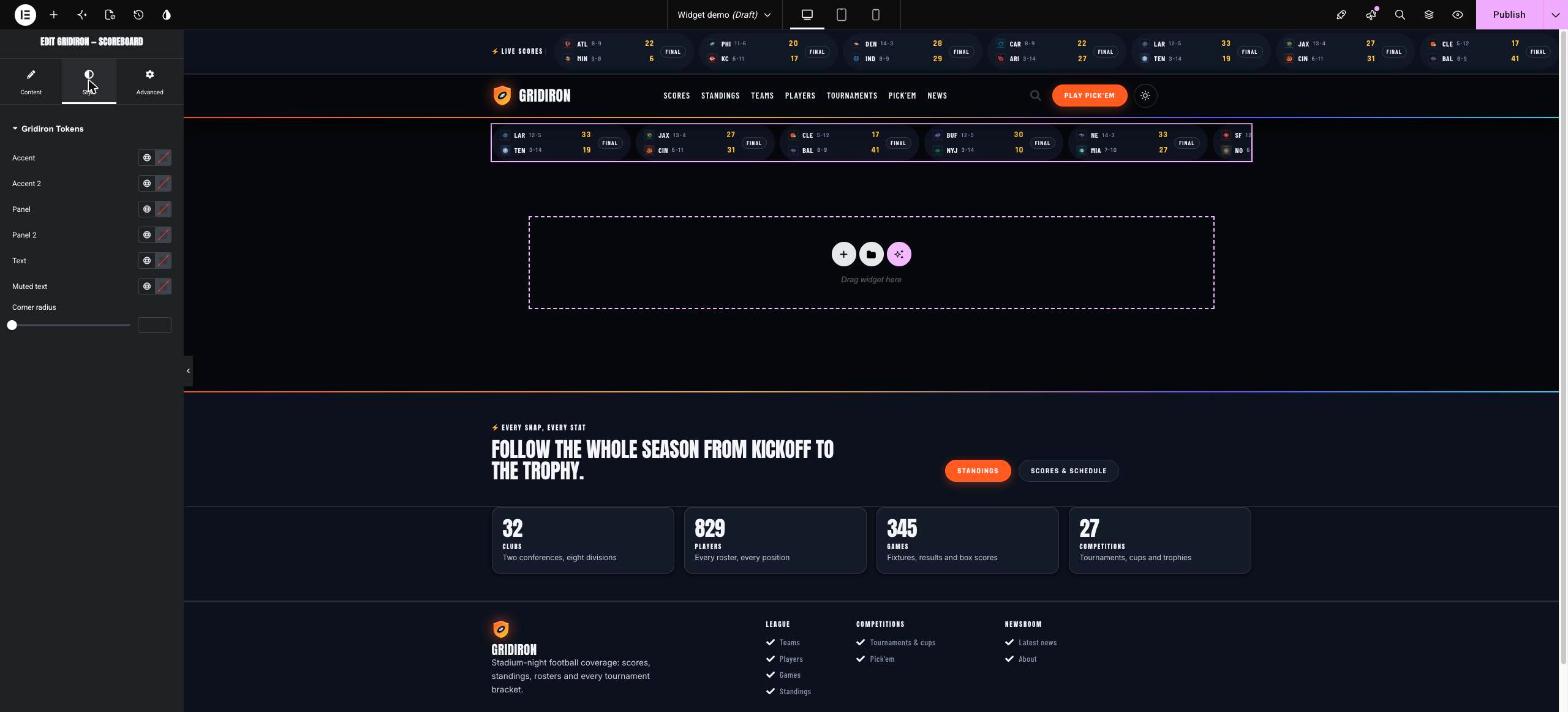
Every widget’s Style tab exposes the Gridiron Tokens — Accent, Panel, Text and Muted colours plus corner radius. They override the design system for that one widget only, so you can re-skin a single scoreboard without touching the rest of the site. Elementor’s usual Advanced tab (margins, motion effects, responsive visibility) works on top as normal.
Video
Watch it in Elementor
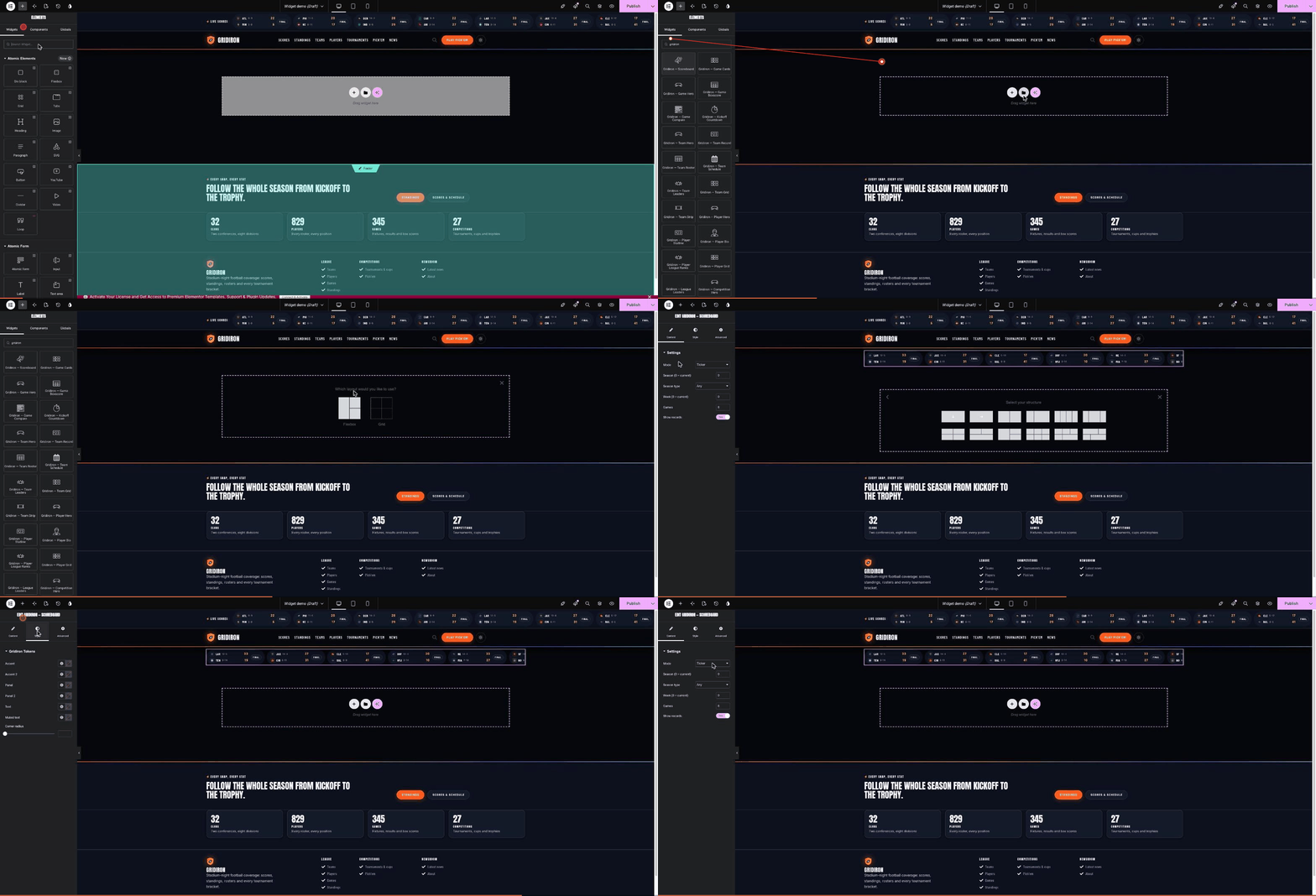
The recording below shows the Elementor side: searching the panel, adding the Scoreboard widget to a fresh page, its Content settings, and the Gridiron Tokens in the Style tab.
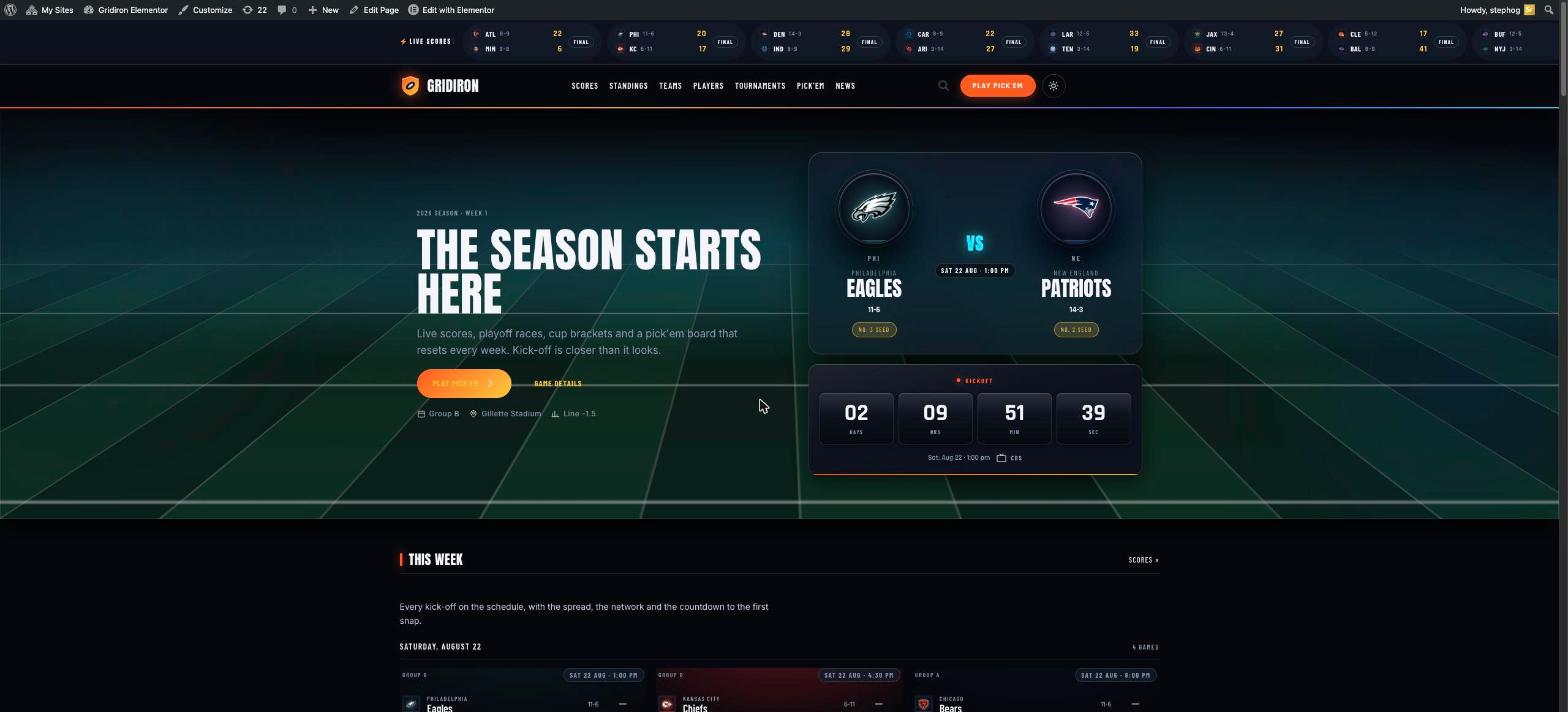
The Elementor demo front page — the same design as the block theme, built widget by widget.
See it running, then make it yours
Both demos run the exact plugin described on this page, filled with a full 32-team season — click through the standings, brackets and pick’em to see every block and widget live.
